Monday, September 22, 2008

Buzzsaw Member Troubleshooting Tip

This post is geared for Buzzsaw Administrators.


One of the best ways of putting yourself in the shoes of your users is to create a copy of them, and then log in as them (without having to ask them for their password).  Sometimes it's easier to "see what they see" than it is to have the member explain what they are seeing.

  1. John Doe emails you to tell you that he can't see the "Highway 101" project on Buzzsaw.
  2. As administrator, you can login and check his permissions.  And when you do, it shows that he should definitely see the "Highway 101" project.  So what gives?
  3. Find John Doe in the Members Tab, right-click on the member and select "Copy".  The new member will be named "Copy of John Doe".  Give this new member your email address, then send the welcome email.
  4. The Welcome email will come to you.  When you log in, you will see everything that John Doe does. 
  5. In this case, while logged in as "Copy of John Doe" you see the Highway project.  So why doesn't John Doe see it?  In this case we find that John Doe has logged in to Buzzsaw as one of his office mates accidentally.  We tell John to log in as himself in the future, case closed.
Is there also a member lesson here?  Yes, don't share your password or allow others to log in as you. 

Thursday, June 19, 2008

Gone baby Gone?

Restoring files that have been deleted from your Buzzsaw site

Remember that important drawing or document you deleted from Buzzsaw a few weeks ago?  Well sure enough, you need it back........it seems that it was your only copy.  That would never happen, right?  Unfortunately it does.

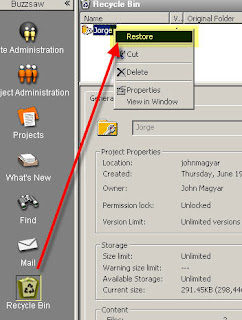
So how do you get the file back?  Just go to the recycle bin, find the file, right click on it, and select "Restore".  It goes back into production.............it's been restored to active status on your Buzzsaw site.  Easy enough.


But what happens when you delete a file from Buzzsaw, and someone empties the Buzzsaw recycle bin?  It's not there to restore.  Gone forever right?  Not necessarily.  Your Buzzsaw Site Administrator may be able to get the file back for you.  The rule of thumb is, you have 30 days or so to get files back after they have been emptied from the recycle bin.  And with a phone call to Autodesk, you may be able to get files back that were deleted several months ago.  


Instructions for Site Administrators:

Click the Site Adminstration button on the Buzzsaw Bar
Select the Activity Log tab
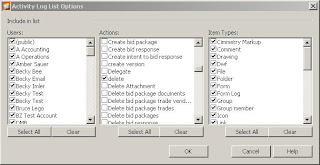
There is probably going to be a lot of activities logged here.  We'll apply a filter by pressing the List Options button.  There are 3 windows showing, you want the Actions window.  Select the Clear button below the Actions window.  Then scroll down the listed action and check the delete box.  We are now looking at only the actions of items being deleted (Folders, Projects, Files, Business Processes, etc).


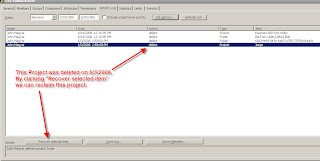
Find the item that you want recovered, then select the Recover Selected Item button in the lower left part of you window.
If you are restoring a project or folder, you can restore all of the files within it, or have Buzzsaw ask you which files to restore.


Buzzsaw will also recognize duplicates.  If you are recovering a file that currently exists on your Buzzsaw Site, you can choose to:
  1. Skip the recovery for that file
  2. Replace the existing file with this file that you are recovering
  3. Add this recovered file as another version of the file that exists on the site
Buzzsaw will also allow you to restore all versions of the file you are recovering, or only restore the most recent version of it.

And lastly, you can choose to restore comment tied to the file that you're recovering..........and/or markups associated with the file.  Now that's a great tool when you need it.

Recovering items that have been emptied from the recycle bin isn't something that we do everyday.  It's that one time though.......that we REALLY need something back that this feature comes to save the day.


Friday, May 9, 2008

Creating and Managing Buzzsaw Notifications

Notifications in Buzzsaw are a fantastic way of watching a project, folder, or file. And it’s also a way of putting Buzzsaw to work for you by monitoring changes and sending you an email when they occur. Notifications work even when you don’t have Buzzsaw open. So why open Buzzsaw to look for changes? Let Buzzsaw do it for you.

Although there a few different ways to set notifications in Buzzsaw, the easiest way may be to identify what you need to “watch”. Is it an entire project? A folder, and it’s contents? Or is it a single file that you want to watch? After you’ve identified what you’d like to watch, navigate to it, right click on it and choose “New Notification”. Then select one of two notification types, Instant or Daily Summary. That’s it!


By following some simple rules, you’ll stay well informed by the Buzzsaw Notification engine.

1) Understand what triggers a notification. Changes to projects, folder and files. If a file is added or changed a notification is triggered. If a file is deleted, the notification to that file is also deleted. If no changes have been made, there will be no notification.


2) Know when to set an instant notification vs. a daily summary.

These are the 2 types of notifications available (Instant and Daily Summary). Use instant notifications to trigger an email that tells you almost instantly when a change has occurred. There is a catch though. If you set an instant notification to a project, this project could potentially have hundred of files within files within files. And any change, anywhere in the entire project will trigger an instant notification. An active project could spew notification after notification after notification, and before long you’re trying to stop the flood of emails. Instant notifications, however, are great for watching individual files, or smaller projects.

The Daily summary is a “once a day notification detailing all changes”. And the nice thing is, you can choose the time that the daily summary notification comes in to your email. And yes, in a busy project, this daily notification can be a very long email…….but it’s better than getting several individual emails throughout the day. Is there such thing as “too much information”? Good question. I’d rather get 20 notifications that I didn’t need than miss 1 that I REALLY needed.

3) Know how to manage your notifications. This is all performed in the notification manager. It’s there that you’ll change notifications from daily summary to instant (and vice versa), temporarily disable notifications, permanently delete notifications, change the daily summary time, even create new notifications.

Monday, April 7, 2008

Embedding Multiple Scales in a PDF


Here's the situation:

  • You have a PDF showing several details.
  • The details are all at different scales.
  • You may already know that you can calibrate scale of a PDF using Bluebeam PDF REVU.
So you set the scale for this first detail (in this case it's 1/4" = 1'), you do some measurements, make some notations, etc. Now, it's on to the next detail on the same PDF. This second detail has a different scale (1/8" = 1'). You set the scale for this second detail and the scale of the first detail gets blown away, right? Wrong. We can now embed multiple scales into a single PDF and these multiple scales are stored in the PDF!. Really......really cool tool.


Couple this capability with the ability to snap to geometry in the PDF and your accuracy has increased tremendously.

More information on Measuring and embedding scales in PDF using Bluebeam here.

Call today for a live demonstration of the power of Bluebeam.
480-559-8670

Thursday, March 27, 2008

Buzzsaw Baby Picture (circa May 2000)

From May 0f 2000. Buzzsaw was still a dot com, not under Autodesk at the time.
http://web.archive.org/web/20000511105836/http://www.buzzsaw.com/

Some interesting bits:

  • Carl Bass was the CEO of Buzzsaw at the time.
  • Many of us were using dialup internet access, so uploading/downloading to/from Buzzsaw wasn't a lot of fun.
  • There were tons of "Collaboration" tools/companies bursting onto the scene (many of them are now gone). You couldn't throw a rock at a trade show without hitting a collaboration booth.
  • There was free training on Thursdays at 1pm (this still occurs each and every Thursday)
  • You'll see the link showing the second round of Venture Funding of $75M.....this funding link also reveals the Buzzsaw Launch date of November 1, 1999.
  • There was a free "Basic Plan" for Buzzsaw......I think it was for 25 or 50 members with 500MB storage (don't quote me on those numbers)
  • The idea of a site webcam was promoted on the homepage

The links are slow......but many of them still work.